Your rhythm guitars sound heavy on their own, but the palm mutes cover the kick and the top end clashes with cymbals. Work on the guitar tone with the drums and bass playing so you can hear which changes help the riff fit the song.
Use this workflow on recorded rhythm guitars after the amp and cab processing. Loop a section with palm mutes and sustained chords. Make one change at a time, match the output level, and compare with bypass before keeping the change.
Hear the Guitars in Context
Play the full mix and switch between Plugin off and Plugin on. Listen to the space around the kick during palm mutes, then to the guitar top end against the cymbals. Use the example to identify those sounds before working on your own tracks.
Full mix
Switch MetalGuitarEQ in and out to compare the guitars against the drums and bass.
“Inertia” by Negaatio. Mixed and mastered by Pauli Mänty from Splinter Audio. The comparison switches MetalGuitarEQ in and out on the guitars in the same performance.
Step 1: Set the Guitar Level Against Drums and Bass
Set a rough fader balance with the core arrangement playing before you insert an EQ. If the guitars cover the kick and snare, lower their fader and listen again. Bring the bass into place and check that you can follow its notes while the riff keeps enough weight.
Solo the guitars to locate a resonance or hear what a processor removes. Return to the arrangement before you keep the change. You can then hear whether you need an EQ change or a fader move.
Choose Track EQ or Bus EQ
Use track EQ when one recording has a resonance or a darker tone than the others. Use a rhythm-guitar bus when the combined tracks share the same buildup. Route the rhythm tracks to that bus and insert the EQ there to hear the effect on the pair or stack.
For an amp sim, start with this order: guitar recording → amp sim → cab or IR → corrective EQ. On a guitar bus, the tracks should already include their amp and cab processing. This guide focuses on EQ after that stage; gain, performance, and cab choice also affect the result.
Step 2: Remove Rumble and Excess Hiss
Place your filters after the amp sim and cab or IR. Check the area below 70 to 80 Hz for rumble that does not support the part. Raise the high-pass filter until the low end clears. Lower the cutoff if the chords or palm mutes lose weight.
Move the low-pass filter down until excess hiss recedes. Restore enough bandwidth to preserve the upper-mid detail that carries the pick attack.
Compare both filters with bypass at a matched level. Listen to a sustained chord as well as the chugs. If the guitar sounds smaller or the pick attack disappears, ease the cutoff. Leave a filter unused if it does not improve the tone in the mix.
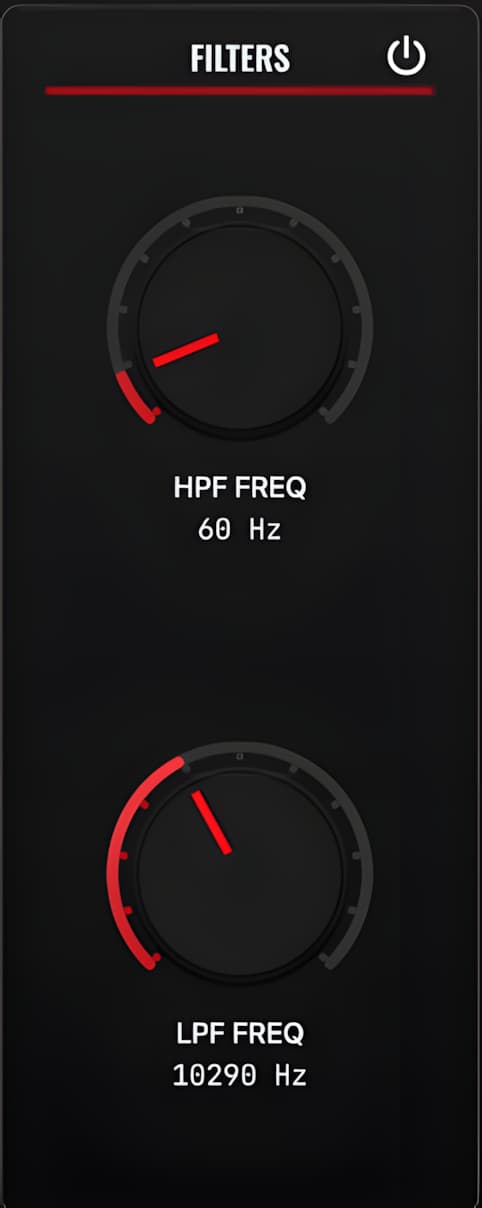
These filters shape an amplified, cab-filtered guitar signal. They cannot repair a weak performance or the wrong amp, cab, or IR choice.
Step 3: Reduce Specific Problem Areas
Treat these ranges as starting points. Tuning, pickups, amp settings, and the cab or IR can shift each problem across the spectrum. Listen with the core tracks playing.
Start with a broad, shallow cut for buildup across a region. For a single ringing frequency, use a narrower band. Solo the guitar for a brief sweep if you need to locate the ring, then return to the mix and reduce the boost before deciding how much to cut. Keep the cut only if it improves the balance at the same output level.
1. Low-Mid Mud and Boxiness (300 to 500 Hz)
Several rhythm tracks can build up around 300 to 500 Hz. Cut until the bass and snare body separate from the guitars. Ease the cut if the chords lose weight.
2. Nasal Honk (700 to 900 Hz)
Some pickup and speaker combinations emphasize 700 to 900 Hz. Sweep this region to find the nasal peak. Judge the cut against the vocals and snare.
3. Bite and Harshness (2.5 to 4 kHz)
This range carries bite and presence. Reduce it when the pick attack hurts or the guitars compete with the vocal. Keep enough presence to hear the pick attack in the mix.
4. Fizz and Hiss (4 to 8 kHz)
Amp sims and cab or IR choices can leave scratchy fizz above the upper mids. Reduce this area when it competes with cymbals, and stop before the guitars lose definition.
Match the Control to the Problem
MetalGuitarEQ provides controls named for the problem you hear: Rumble, Mud, Honk, Bite, Harsh, and Fizz.
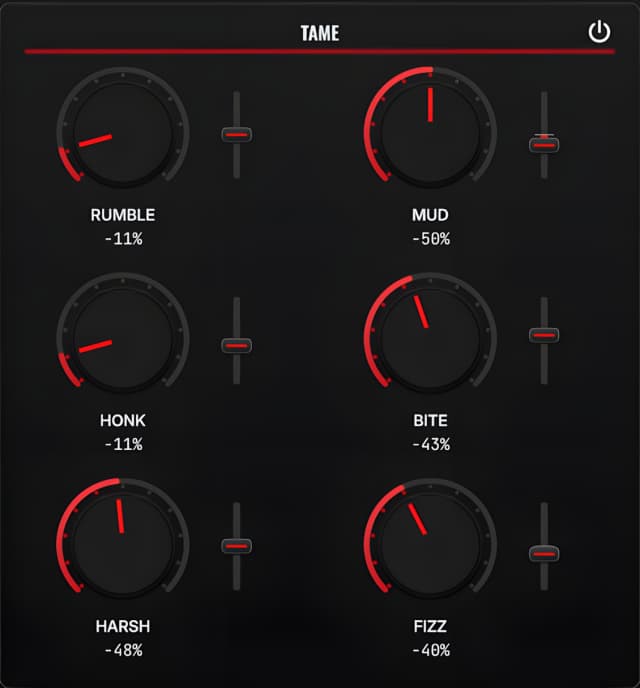
You can make these moves with a general-purpose EQ. MetalGuitarEQ shortens the setup by giving each recurring problem its own control. Choose the matching control. Use Tilt to move its focus above or below the starting point. Keep a general-purpose EQ for narrow resonances or problems outside these controls.
Step 4: Control Palm-Mute Bloom
A deep static low-end cut can thin sustained chords before it controls the heaviest palm mutes. Use dynamic EQ or multiband compression to reduce the low-mid bloom on those hits without applying the same cut across the part.
With a dynamic EQ, find the low-mid region that swells on the chugs. Set the threshold so the band reduces that swell during palm mutes and relaxes on sustained chords. Start with a small amount of reduction and compare with bypass. If the chords lose body or the low end pumps between hits, ease the reduction and revisit the timing controls.
With multiband compression, isolate the same problem region and adjust the threshold while watching the gain-reduction meter. Listen for a steadier low end against the kick and bass. Avoid compressing the entire guitar signal to solve a buildup in one band.
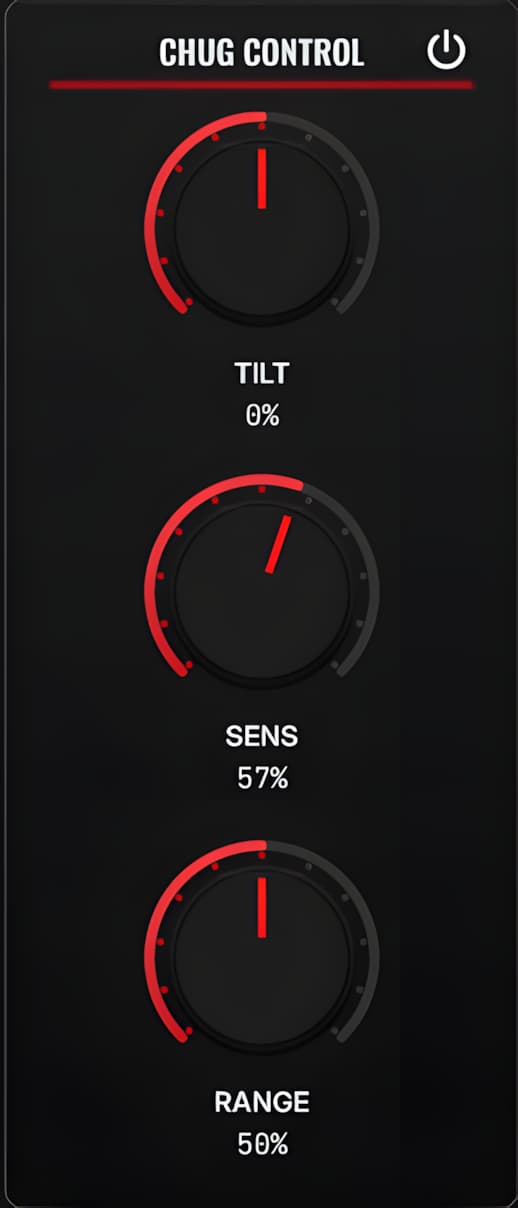
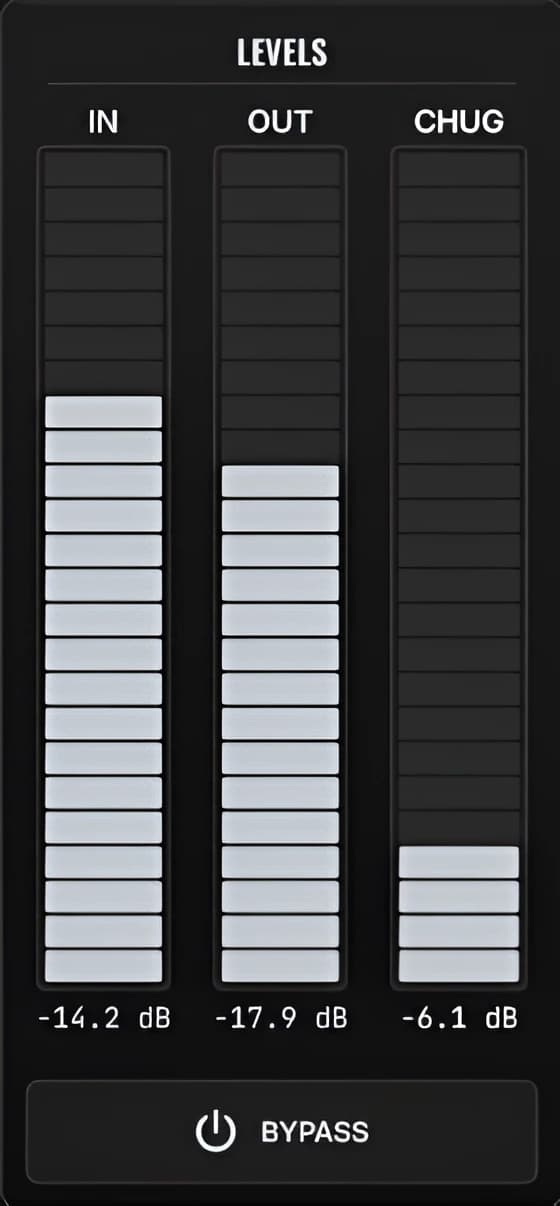
MetalGuitarEQ handles this with Chug Control. It reduces low-mid bloom when palm mutes hit, leaving more room for the kick and bass while helping you retain weight in sustained chords. Increase the control while the loop plays, then back it off if the riff loses body. Check the Chug reduction meter alongside what you hear.
Step 5: Check for Lost Definition
If the guitars sound dull after EQ, ease the low-pass filter or upper-mid cuts and compare again. You may have removed too much pick attack while reducing harshness.
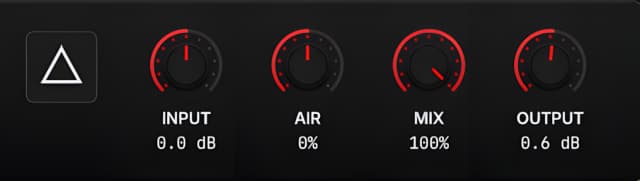
If the tone still needs more top end, try a small broad high-shelf boost or MetalGuitarEQ's Air control. Listen against the cymbals and stop if hiss or fizz becomes more noticeable. Skip this move when you can already hear the pick definition you need.
Step 6: Level-Match and Compare
EQ cuts and dynamic control can reduce the guitar's perceived loudness. Match the processed level to the bypassed level before you judge the change.
Adjust the output gain while switching between processed and bypassed audio. Match the perceived guitar level over the same loop; peak readings alone may not reflect how loud the part sounds. Then listen to the full arrangement.
Use bypass to compare your processing with the original signal. Use MetalGuitarEQ's A/B comparison to compare two settings, such as a lighter cut against a stronger one. Check the output level for each setting so extra volume does not decide the result.
- Does the kick drum punch through the guitar low end?
- Can you hear the bass guitar note attack and low-mid growl?
- Do the guitars keep enough weight and pick definition?
- Do the vocals and cymbals stay clear above the guitars?
The Metal Guitar EQ Checklist
- Balance the faders: Set the guitar level against the drums and bass before adding EQ.
- Define the bandwidth: Remove rumble and hiss without thinning the riff.
- Reduce problems by ear: Use frequency ranges as starting points, then judge each move in the mix.
- Control palm-mute bloom: Tighten the chugs while keeping weight in sustained chords.
- Check definition: Revisit excessive cuts before adding top end. Leave enough pick attack to hear the riff.
- Level-match and compare: Judge tone and mix placement without a loudness bias.
Try MetalGuitarEQ in Your Sessions
Try MetalGuitarEQ on your rhythm guitars free for 14 days, with all controls available. Tighten palm mutes, reduce mud, and control fizz while listening to your mix. Pineware Oy develops and publishes the plugin.